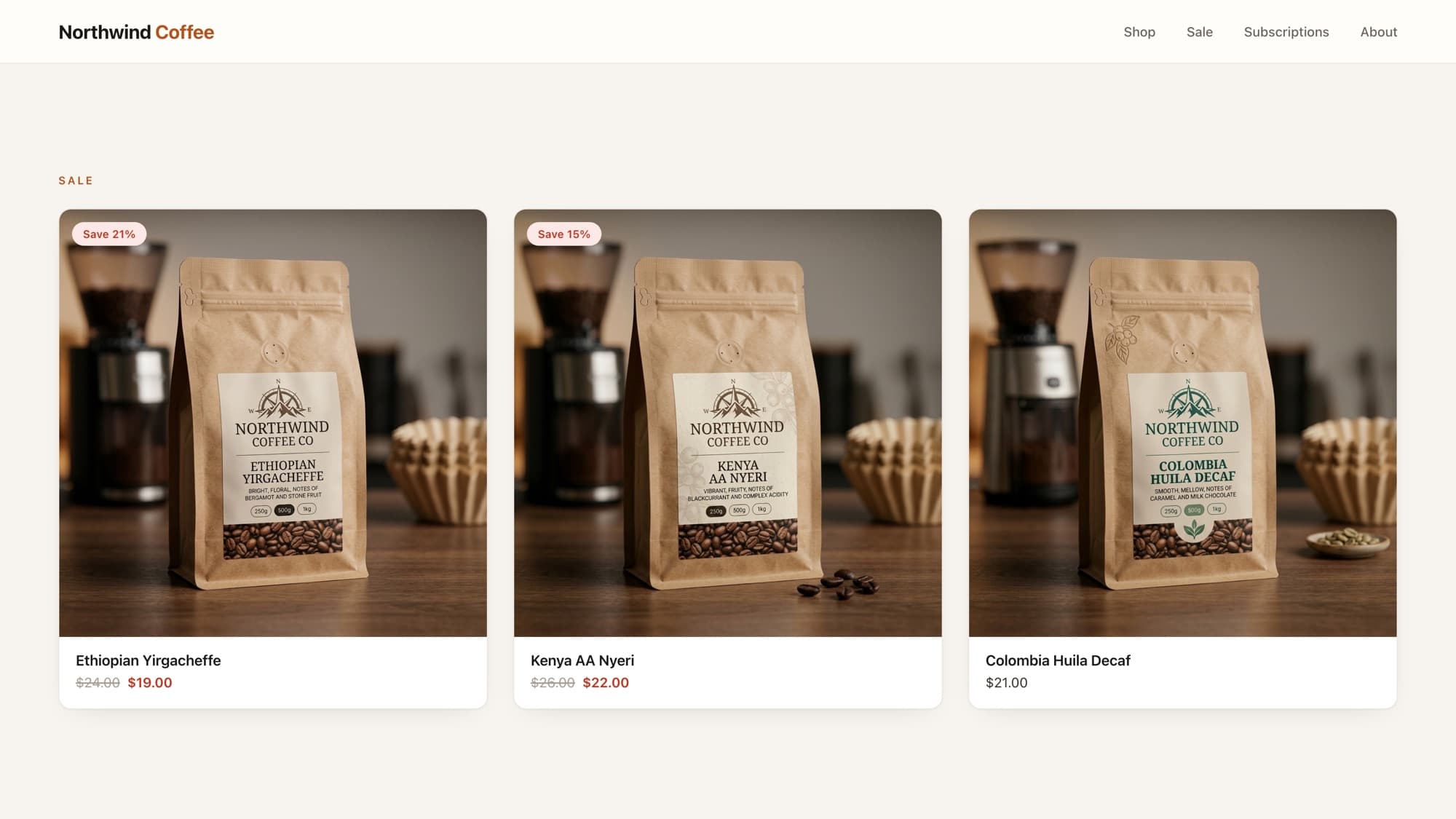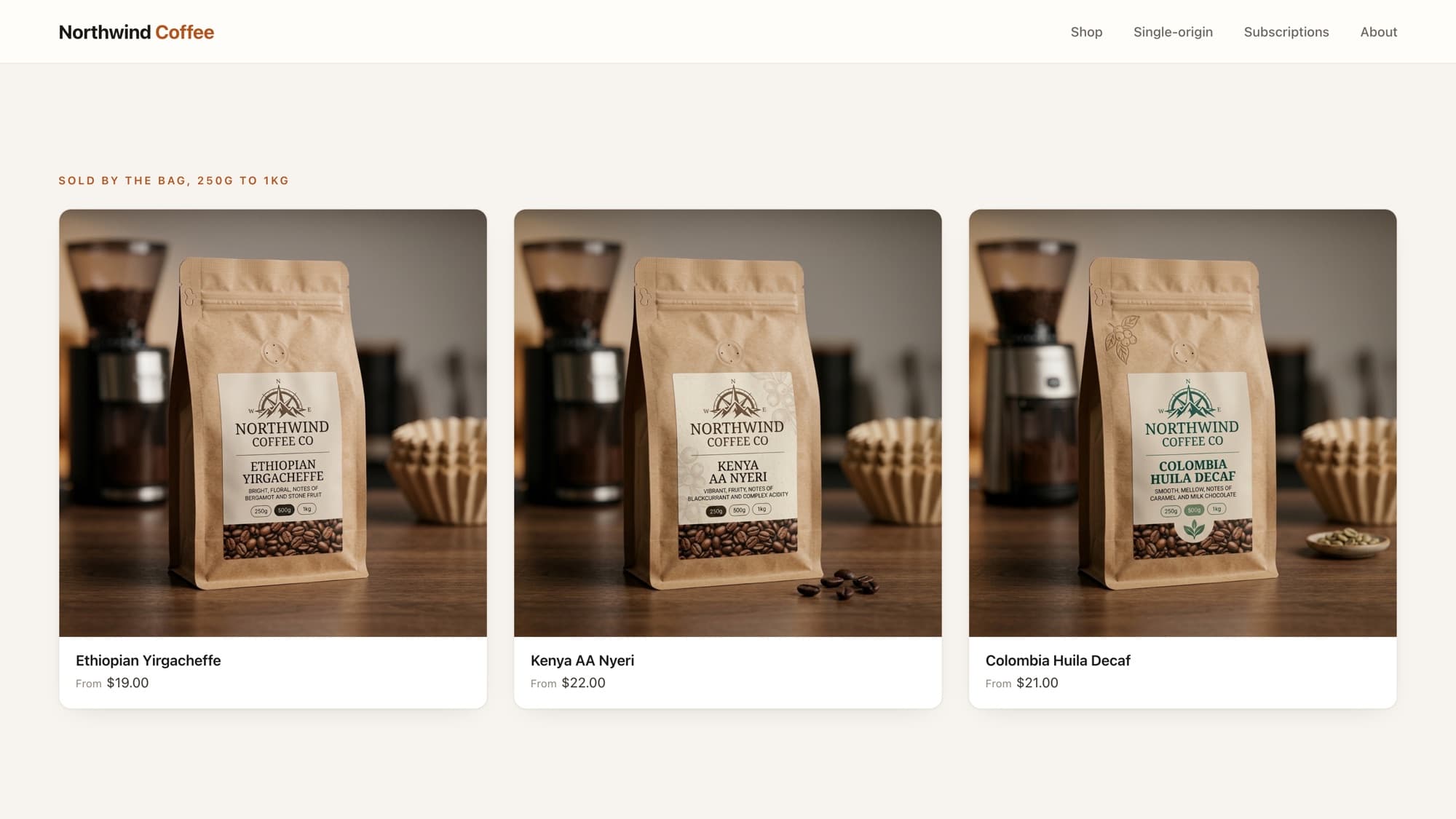
If you've ever output {{ product.price }} in a Shopify theme and seen 1899 instead of $18.99, you've hit the single most common surprise in Shopify Liquid: every price is stored in cents, and it's your job to format it. The tool for that is the money filter.
The money filter
Pipe any price value through money and Shopify formats it using the store's currency settings:
{{ product.price | money }}{# 1899 → $18.99 #} {{ product.price }}{# 1899 → 1899 (raw cents, almost never what you want) #}The format itself ($ vs. €, comma vs. period) comes from the store's settings, not from your code, which is exactly why you never hardcode the symbol yourself.
money vs. money_with_currency
Shopify gives you two filters, and the difference matters on multi-currency stores:
{{ 1899 | money }}{# $18.99 #} {{ 1899 | money_with_currency }}{# $18.99 USD #}money, the amount with the currency symbol. Use it almost everywhere.money_with_currency, the amount plus the ISO currency code (USD). Use it where the currency could be ambiguous, like a cart that supports multiple markets.
Never hardcode the symbol
Writing ${{ product.price | divided_by: 100 }} might look like it works on your USD dev store, but it breaks the moment a customer shops in euros or yen. Let money read the store's currency settings, that's the entire point of the filter.
Common price fields you'll format
{{ product.price | money }} {# current price #}{{ product.compare_at_price | money }} {# original (struck-through) price #}{{ product.price_min | money }} {# lowest variant price #}{{ product.price_max | money }} {# highest variant price #}{{ cart.total_price | money }} {# cart total #}{{ line_item.final_line_price | money }} {# a cart line's total #}Tip
Want $18 instead of $18.00 when the price is round? Use money_without_trailing_zeros, it drops the decimals only when they'd be zero.
What AI tools get wrong here
AI assistants frequently "fix" the raw 1899 by dividing by 100 and prepending a $. It passes a glance on a US store and quietly ships a currency bug everywhere else. The durable skill is knowing that price formatting is a store-settings concern, not a math problem, and reaching for money every time.
Learn this properly · free lesson
Render product pricing the way production themes do
Render product pricing the way production themes actually do it, the right object, the right filter, no hardcoding. A free, interactive lesson with a reviewer checking your work.
Try this lesson for freeFrequently asked questions
Why does Shopify show prices in cents?
Shopify stores all monetary values as integers in the currency's smallest unit (cents for USD) to avoid floating-point rounding errors. The money filter converts that integer into a formatted, currency-aware string for display.
What's the difference between money and money_with_currency?
money outputs the amount with the currency symbol (e.g. $18.99). money_with_currency adds the ISO currency code (e.g. $18.99 USD), which is useful in multi-currency contexts where the symbol alone is ambiguous.
How do I remove the .00 from round prices?
Use the money_without_trailing_zeros filter. It renders $18 for a round amount and $18.99 when there are cents, so your prices stay clean without losing precision.
Can I change the money format?
Yes, the format strings live in Settings → Store details → Currency formatting (or your theme's currency settings). Edit them there rather than hardcoding symbols in Liquid, so every money filter across the theme stays consistent.
- Liquid
- Pricing
- Internationalization
About the author
Bas Lefeber, Founder, learnshopify.dev
Bas builds learnshopify.dev, where developers learn production-grade Shopify theme development against a live storefront. He writes about Liquid, theme architecture, and the parts of the job that still matter now that AI writes the code.
Keep going in the curriculum