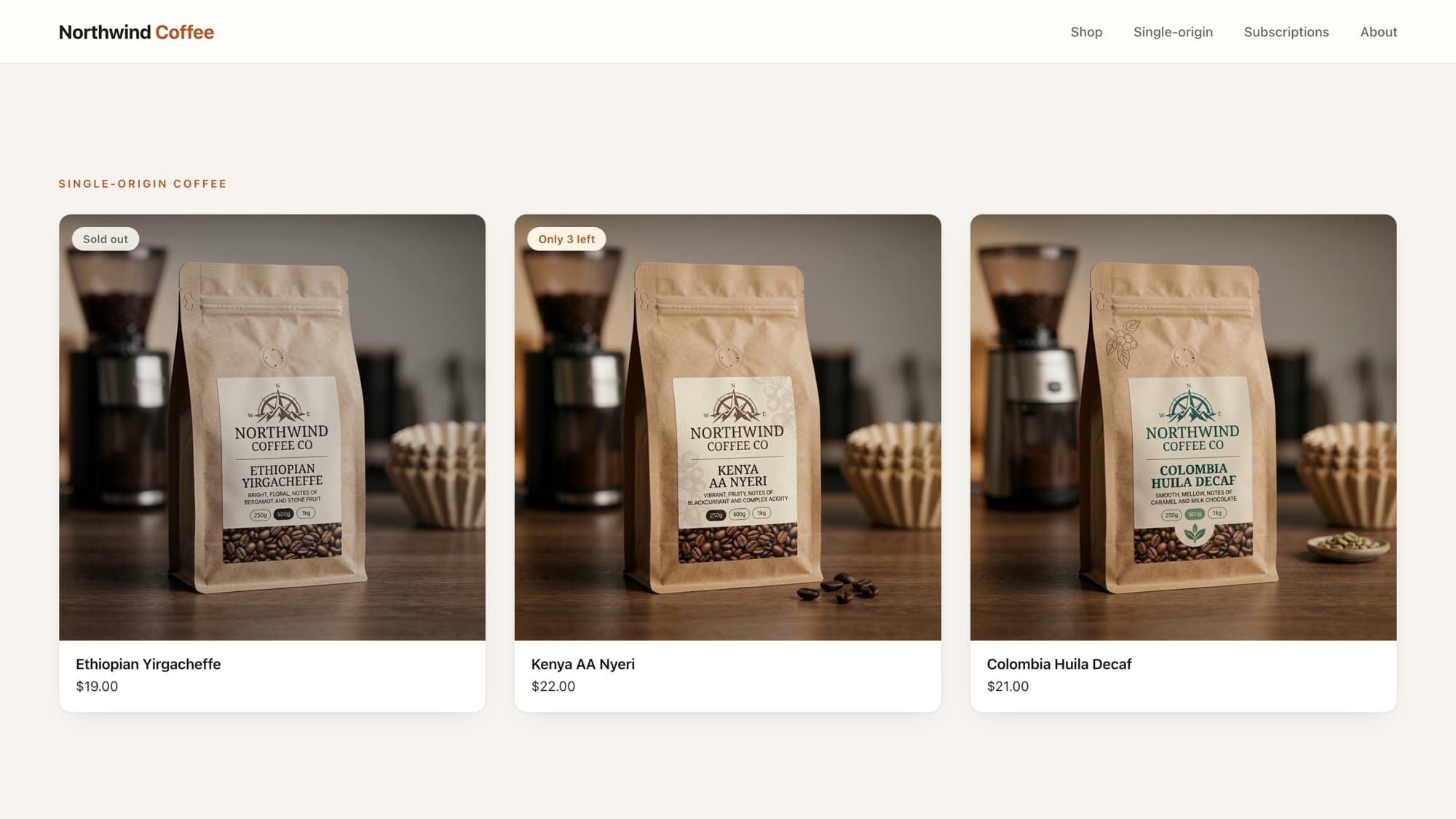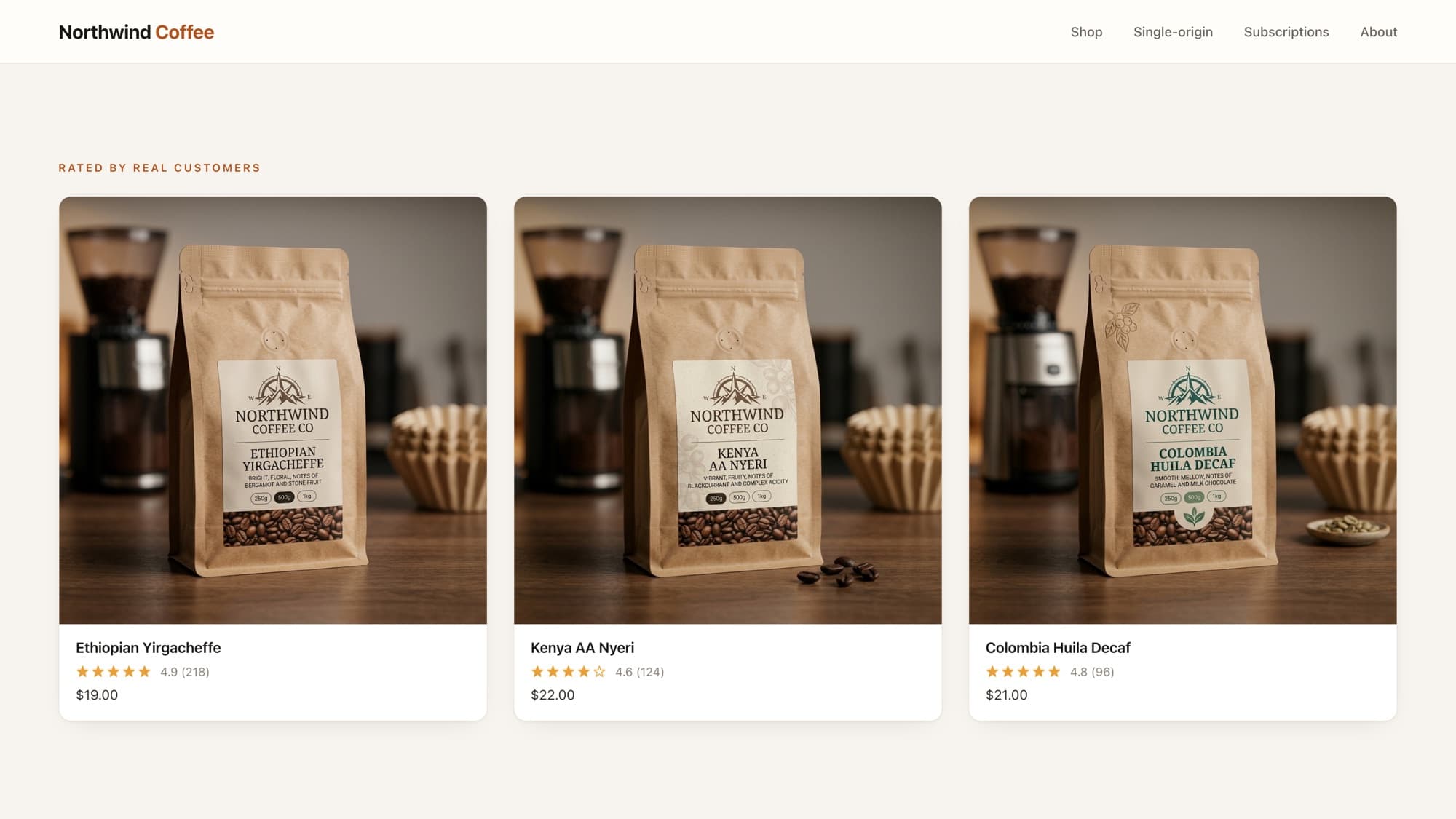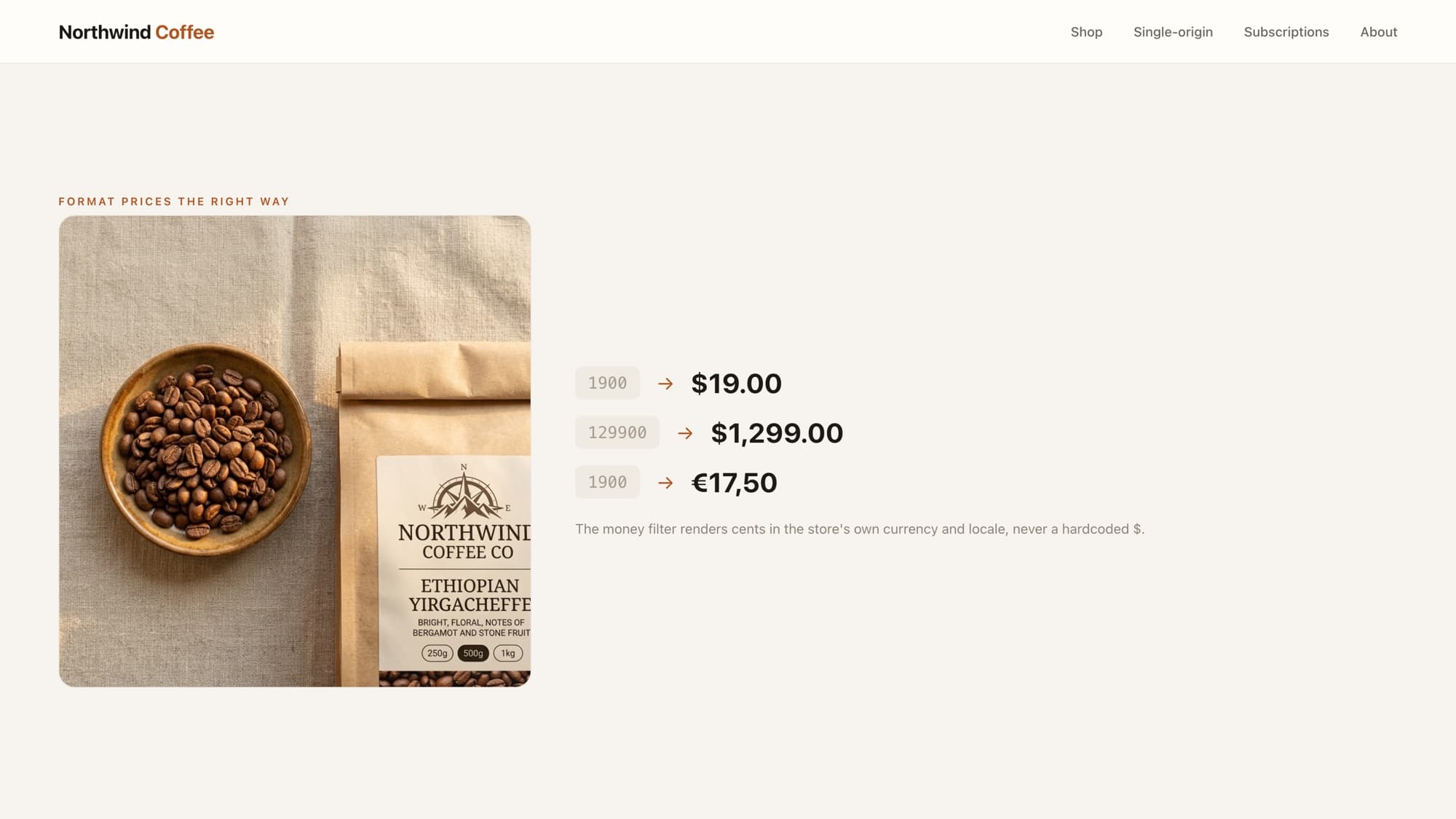
A sale badge is a small "Sale" or "-20%" flag on a product that's discounted. In Shopify, "on sale" has a precise meaning: the product has a compare_at_price that's higher than its current price. That comparison is the whole feature.
The basic sale badge
{% if product.compare_at_price > product.price %} <span class="badge badge--sale">Sale</span>{% endif %}If there's no compare-at price, product.compare_at_price is nil, the comparison is false, and no badge renders. Exactly what you want.
Showing the percentage off
A specific number converts better than a generic "Sale." Compute the discount as a percentage. Remember both prices are in cents, but since it's a ratio the units cancel:
{% if product.compare_at_price > product.price %} {% assign saved = product.compare_at_price | minus: product.price %} {% assign pct = saved | times: 100 | divided_by: product.compare_at_price %} <span class="badge badge--sale">-{{ pct }}%</span>{% endif %}Filters can't go inside the comparison
You can't write if pct > saved | times: 100, Liquid won't apply a filter inside a comparison operand. Always assign the computed value to a variable first, then compare or output it. This trips up almost everyone (and most AI suggestions).
Products with multiple variants
On a product card the bare product.compare_at_price reflects the first variant. If only some variants are discounted, use the price-range fields so the badge reflects whether any variant is on sale:
{% if product.compare_at_price_max > product.price_min %} <span class="badge badge--sale">Sale</span>{% endif %}Tip
Pair the badge with a struck-through original price for a stronger signal: <s>{{ product.compare_at_price | money }}</s> {{ product.price | money }}.
What AI tools get wrong here
Two recurring mistakes: trying to apply a filter inside the if comparison (Liquid rejects it), and using the single-variant compare_at_price on a multi-variant product so the badge misfires. Knowing to assign first and to reach for the _max/_min range fields on cards is the production-grade version.
Learn this properly · free lesson
Add a Sale badge to discounted items
Build the sale badge in the interactive editor against a real product, including the multi-variant edge case. Free lesson, try it without signing up.
Try this lesson for freeFrequently asked questions
What is compare_at_price in Shopify?
It's the product's original (pre-discount) price. When compare_at_price is set and higher than price, the product is on sale. Merchants set it on the variant in the product admin.
How do I calculate the discount percentage in Liquid?
Assign saved = compare_at_price minus price, then pct = saved times 100 divided_by compare_at_price. You must assign the computed value first, Liquid won't apply filters inside an if comparison.
Why does my sale badge show on the wrong products?
Usually because you're comparing a single variant's compare_at_price on a multi-variant product. On product cards, use compare_at_price_max and price_min so the badge reflects whether any variant is discounted.
How do I show the original price struck through?
Wrap the compare-at price in an <s> tag and format both with the money filter: <s>{{ product.compare_at_price | money }}</s> {{ product.price | money }}.
- Liquid
- Pricing
- Product cards
About the author
Bas Lefeber, Founder, learnshopify.dev
Bas builds learnshopify.dev, where developers learn production-grade Shopify theme development against a live storefront. He writes about Liquid, theme architecture, and the parts of the job that still matter now that AI writes the code.
Keep going in the curriculum