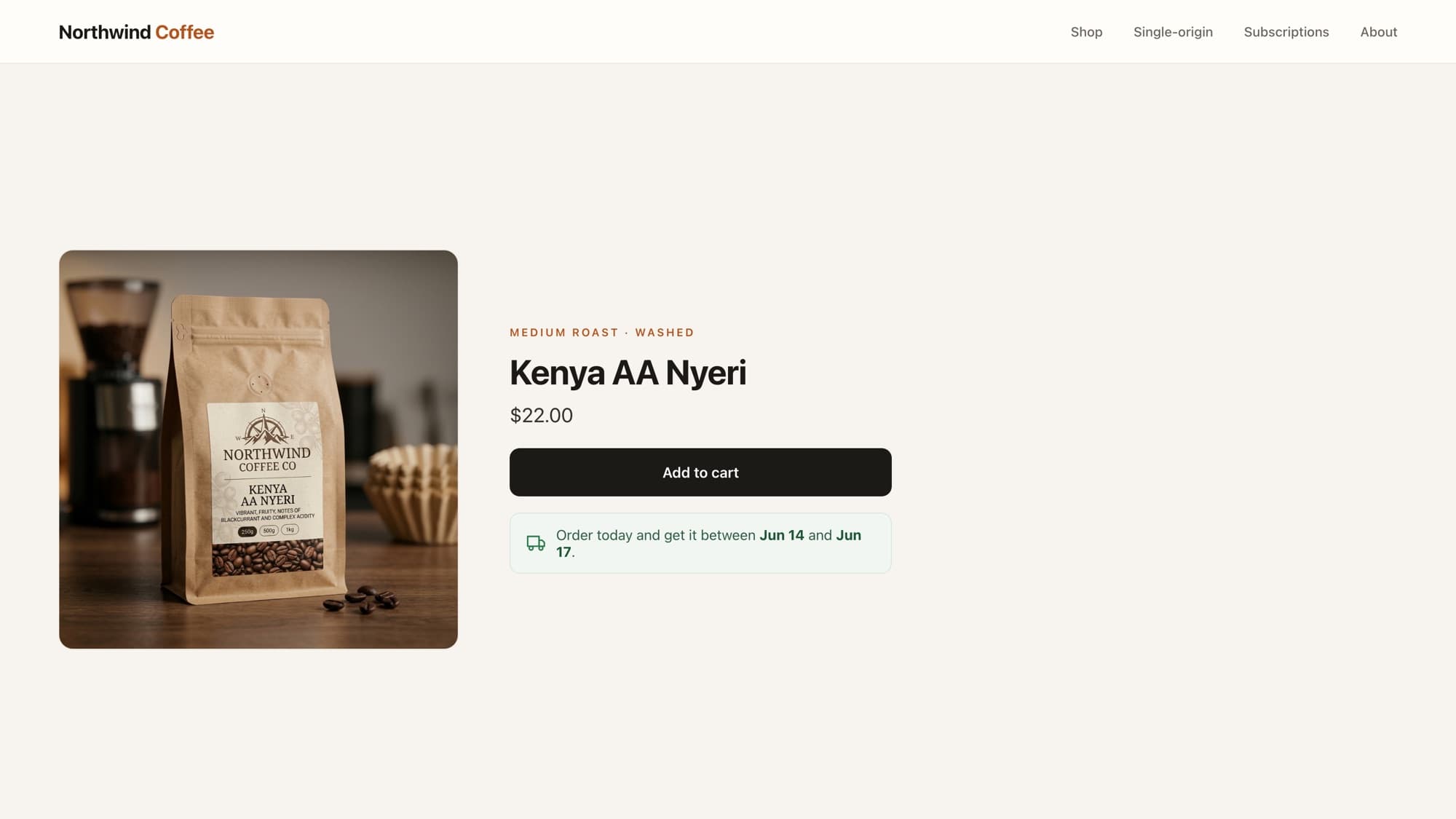
A sticky add to cart bar is the slim strip that follows the shopper down a long product page with the product name, price, and an Add to cart button always in reach. On mobile especially, where the real button is buried far below the fold, it removes the "scroll all the way back up to buy" friction. Done right it is a genuine conversion lift, and it is a few lines of Liquid plus a tiny bit of JavaScript.
The key is to build it on the real product form, not a fake button, so variants, sold-out states, and the cart all keep working. Here is the whole thing.
The markup
Create snippets/sticky-atc.liquid and render it once on the product template. It uses Shopify's own {% form 'product' %}, which is what makes the button real, posting to /cart/add exactly like the main one.
{% assign current_variant = product.selected_or_first_available_variant %} <div class="sticky-atc" data-sticky-atc hidden> <div class="sticky-atc__info"> {{ product.featured_image | image_url: width: 96 | image_tag: alt: product.title, class: 'sticky-atc__img' }} <div> <p class="sticky-atc__title">{{ product.title }}</p> <p class="sticky-atc__price">{{ current_variant.price | money }}</p> </div> </div> {% form 'product', product %} <input type="hidden" name="id" value="{{ current_variant.id }}"> <button type="submit" class="sticky-atc__btn" {% unless product.available %}disabled{% endunless %}> {% if product.available %}Add to cart{% else %}Sold out{% endif %} </button> {% endform %}</div>{% form 'product', product %}renders Shopify's real product form. The form tag wires the submit to the cart for you, so you do not hand-roll a fetch.- The hidden
idinput carriescurrent_variant.idso the right variant is added. On a multi-variant product, sync this with the main picker (see the note below). hiddenon the wrapper keeps the bar out of the layout until JavaScript reveals it, and{% unless product.available %}disabled{% endunless %}mirrors the sold-out state so you never offer a buy button for an out-of-stock item.
Reveal it only when the main button leaves the screen
A sticky bar that is always visible is annoying and competes with the real button. The right behaviour is: show it only once the main add to cart button has scrolled out of view. The modern, performant way to detect that is an IntersectionObserver, no scroll-event math, no jank.
const bar = document.querySelector('[data-sticky-atc]');const mainButton = document.querySelector('product-form button[type="submit"], .product-form__submit'); if (bar && mainButton) { const observer = new IntersectionObserver(([entry]) => { // Show the sticky bar when the real button is NOT on screen. bar.hidden = entry.isIntersecting; }, { threshold: 0 }); observer.observe(mainButton);}Match your theme's selectors
The main-button selector varies by theme. In Shopify's Horizon and other Online Store 2.0 themes it lives inside a <product-form> custom element; older themes use .product-form__submit. Inspect your add to cart button and point the observer at it.
Styling: pin it to the bottom
.sticky-atc { position: fixed; inset: auto 0 0 0; z-index: 20; display: flex; align-items: center; justify-content: space-between; gap: 1rem; padding: 0.75rem 1rem; padding-bottom: calc(0.75rem + env(safe-area-inset-bottom)); background: #fff; border-top: 1px solid rgba(0, 0, 0, 0.08); box-shadow: 0 -6px 24px -12px rgba(0, 0, 0, 0.25);}.sticky-atc__info { display: flex; align-items: center; gap: 0.75rem; min-width: 0; }.sticky-atc__img { width: 48px; height: 48px; border-radius: 8px; object-fit: cover; }.sticky-atc__title { font-weight: 600; font-size: 0.9rem; white-space: nowrap; overflow: hidden; text-overflow: ellipsis; }.sticky-atc__price { font-size: 0.85rem; opacity: 0.7; }.sticky-atc__btn { flex: none; padding: 0.85rem 1.5rem; border: 0; border-radius: 10px; background: #1c1a17; color: #fff; font-weight: 600; }.sticky-atc__btn[disabled] { opacity: 0.5; }Note
The env(safe-area-inset-bottom) padding keeps the bar clear of the iPhone home indicator. Small detail, but it is the difference between a bar that feels native and one that looks bolted on.
Keeping the variant in sync
For a single-variant product you are done. For multi-variant products, the sticky bar should add whatever the shopper selected in the main picker. Listen for the theme's variant-change event and update the hidden id input (and the price) on the sticky bar. Most Online Store 2.0 themes publish a variant-change event you can subscribe to, the same hook covered in the from-price for multi-variant products walkthrough.
What AI tools get wrong here
- Faking the button with a custom
fetch('/cart/add.js')instead of using{% form 'product' %}, which drops variant handling, error states, and theme cart integration. - Listening to scroll events and recomputing positions on every pixel, instead of an IntersectionObserver. It works until the page is long and the phone is cheap.
- Always-on visibility, so the bar covers content and fights the real button instead of appearing only when it is actually useful.
Learn this properly · free lesson
Reusable markup with snippets and {% render %}
The sticky bar reuses your product data and form. Practice factoring product UI into clean, reusable snippets in our interactive editor, against a live store, with a reviewer checking your work.
Try this lesson for freeWrapping up
Build it on the real product form, reveal it with an IntersectionObserver, pin it with a safe-area-aware bottom bar, and keep the variant in sync. That is a sticky add to cart that actually converts, and behaves like part of the theme instead of an app bolt-on. Pair it with a sold-out badge and a free shipping bar for a product page that sells.
Frequently asked questions
How do I add a sticky add to cart bar in Shopify without an app?
Render a small snippet on the product template that uses Shopify's {% form 'product' %} with a hidden variant id input, then reveal it with an IntersectionObserver that watches the main add to cart button. It is a few lines of Liquid, CSS, and JavaScript, no app needed.
Why use the product form instead of a custom add to cart button?
Because {% form 'product' %} posts to the cart the same way the main button does, so variants, sold-out states, and your theme's cart drawer all keep working. A hand-rolled fetch usually drops one of those.
How do I show the sticky bar only after scrolling?
Use an IntersectionObserver on the main add to cart button. When the button is on screen, hide the sticky bar; when it scrolls out of view, show it. This avoids expensive scroll-event listeners and stays smooth on long pages.
Will the sticky bar work with multiple variants?
Yes. For multi-variant products, listen for your theme's variant-change event and update the sticky bar's hidden id input and price to match the shopper's selection, so it always adds the variant they actually chose.
- Liquid
- Conversion
- Product page
About the author
Bas Lefeber, Founder, learnshopify.dev
Bas builds learnshopify.dev, where developers learn production-grade Shopify theme development against a live storefront. He writes about Liquid, theme architecture, and the parts of the job that still matter now that AI writes the code.
Keep going in the curriculum