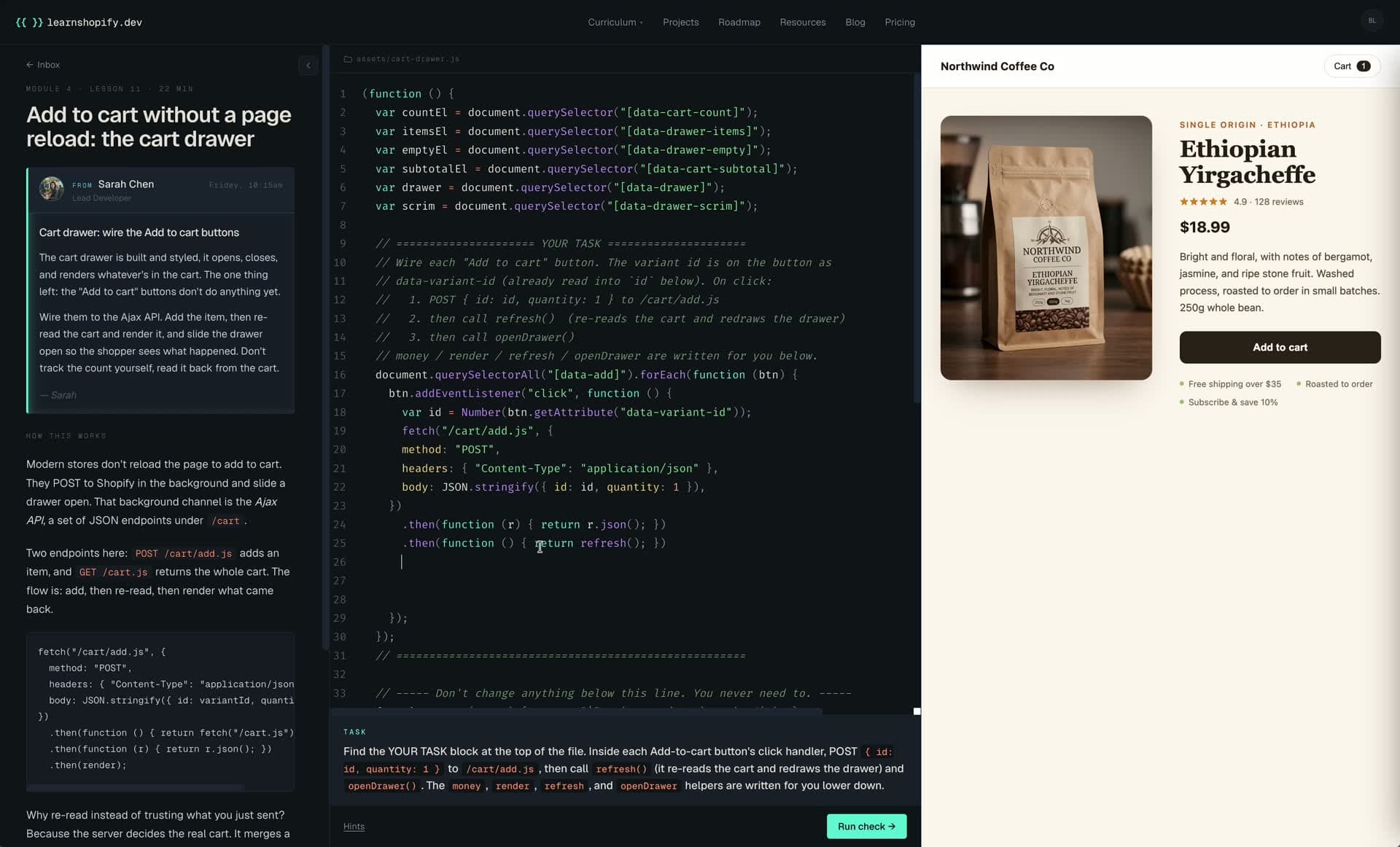
The cart drawer is the single highest-impact UX upgrade you can ship on a Shopify storefront. Sending shoppers to a full cart page after every add-to-cart costs you 5-15% of your conversion rate because every click is a chance to bounce. The drawer keeps them on the product they were just looking at, shows the cart updated in place, and the slot above the checkout button becomes prime real estate for upsells.
We're going to build a complete cart drawer in five steps: markup + slide-in animation, AJAX add-to-cart, optimistic quantity, an upsell row from Shopify's recommendation API, and the empty + loading states that separate a 'works on a demo' build from one you can ship to a real merchant.
Step 1
The drawer shell + slide-in animation
Create the drawer as a section so it loads on every page (cart, product, collection, etc.). Add it to your theme layout once and you have a global drawer.
<aside id="CartDrawer" class="cart-drawer" aria-hidden="true" data-cart-drawer> <div class="cart-drawer__backdrop" data-cart-close></div> <div class="cart-drawer__panel" role="dialog" aria-label="Shopping cart"> <header class="cart-drawer__header"> <h2 class="cart-drawer__title">Your cart</h2> <button type="button" class="cart-drawer__close" aria-label="Close" data-cart-close>×</button> </header> <div class="cart-drawer__body" data-cart-body> {% render 'cart-drawer-contents', cart: cart %} </div> </div></aside> {% schema %}{ "name": "Cart drawer", "settings": []}{% endschema %} {% stylesheet %} .cart-drawer { position: fixed; inset: 0; pointer-events: none; z-index: 1000; visibility: hidden; } .cart-drawer[aria-hidden="false"] { visibility: visible; pointer-events: auto; } .cart-drawer__backdrop { position: absolute; inset: 0; background: rgb(15 20 25 / 0.45); opacity: 0; transition: opacity 240ms cubic-bezier(0.32, 0.72, 0, 1); } .cart-drawer[aria-hidden="false"] .cart-drawer__backdrop { opacity: 1; } .cart-drawer__panel { position: absolute; top: 0; right: 0; bottom: 0; width: 100%; max-width: 400px; background: rgb(var(--color-background, 255 255 255)); box-shadow: -20px 0 40px rgb(0 0 0 / 0.10); transform: translateX(100%); transition: transform 320ms cubic-bezier(0.32, 0.72, 0, 1); display: flex; flex-direction: column; } .cart-drawer[aria-hidden="false"] .cart-drawer__panel { transform: translateX(0); } .cart-drawer__header { padding: 18px 20px; border-bottom: 1px solid rgb(var(--color-foreground, 0 0 0) / 0.08); display: flex; align-items: center; justify-content: space-between; } .cart-drawer__title { margin: 0; font-size: 16px; font-weight: 600; } .cart-drawer__close { background: none; border: 0; font-size: 22px; cursor: pointer; } .cart-drawer__body { flex: 1; overflow-y: auto; }{% endstylesheet %}Why `aria-hidden` instead of `display: none`?
We want the transition (transform: translateX) to play in both directions. Toggling display: none kills the animation. Toggling aria-hidden is the accessible alternative AND keeps the panel in the DOM so the slide-out works.
Step 2
Render the line items via a snippet
Separating the contents into a snippet lets the JS replace just the contents on cart updates without redrawing the whole drawer (which would kill the animation):
{% if cart.item_count > 0 %} {% render 'free-shipping-bar' %} <ul class="cart-drawer__lines"> {% for item in cart.items %} <li class="cart-drawer__line" data-line-key="{{ item.key }}"> <a href="{{ item.url }}" class="cart-drawer__line-img"> {{ item | image_url: width: 120 | image_tag: loading: 'lazy', class: 'cart-drawer__img', widths: '60,120' }} </a> <div class="cart-drawer__line-meta"> <a href="{{ item.url }}"><h3>{{ item.product.title }}</h3></a> {% unless item.product.has_only_default_variant %} <p>{{ item.variant.title }}</p> {% endunless %} </div> <div class="cart-drawer__line-controls"> <span class="cart-drawer__line-price">{{ item.final_line_price | money }}</span> <span class="cart-drawer__qty" data-line-key="{{ item.key }}"> <button type="button" data-qty-decrement aria-label="Decrease">−</button> <span data-qty-value>{{ item.quantity }}</span> <button type="button" data-qty-increment aria-label="Increase">+</button> </span> </div> </li> {% endfor %} </ul> {% render 'cart-drawer-upsells', cart: cart %} <footer class="cart-drawer__footer"> <div class="cart-drawer__total"> <span>Subtotal</span> <strong data-cart-total>{{ cart.total_price | money }}</strong> </div> <a href="/checkout" class="cart-drawer__checkout">Checkout →</a> </footer>{% else %} <div class="cart-drawer__empty"> <p>Your cart is empty.</p> <a href="/collections/all">Browse products →</a> </div>{% endif %}Step 3
AJAX add-to-cart from anywhere
Intercept any form that posts to /cart/add and submit it via fetch instead. On success, refresh the drawer contents and open it.
class CartDrawer { constructor() { this.el = document.querySelector('[data-cart-drawer]'); if (!this.el) return; this.body = this.el.querySelector('[data-cart-body]'); this.bindEvents(); } open() { this.el.setAttribute('aria-hidden', 'false'); document.body.style.overflow = 'hidden'; } close() { this.el.setAttribute('aria-hidden', 'true'); document.body.style.overflow = ''; } async refresh() { // Section Rendering API: fetch only the drawer section's HTML. const res = await fetch(`/?section_id=cart-drawer`); const html = await res.text(); const next = new DOMParser().parseFromString(html, 'text/html') .querySelector('[data-cart-body]'); if (next) this.body.replaceChildren(...next.children); } async add(form) { const formData = new FormData(form); const res = await fetch('/cart/add.js', { method: 'POST', headers: { 'Accept': 'application/json' }, body: formData, }); if (!res.ok) throw new Error('Add to cart failed'); await this.refresh(); this.open(); } async changeQty(key, qty) { const res = await fetch('/cart/change.js', { method: 'POST', headers: { 'Content-Type': 'application/json', 'Accept': 'application/json' }, body: JSON.stringify({ id: key, quantity: qty }), }); if (!res.ok) throw new Error('Cart change failed'); await this.refresh(); } bindEvents() { // Close on backdrop click or close button this.el.addEventListener('click', (e) => { if (e.target.closest('[data-cart-close]')) this.close(); }); // Intercept every product form on the page document.addEventListener('submit', (e) => { const form = e.target.closest('form[action$="/cart/add"]'); if (!form) return; e.preventDefault(); this.add(form); }); // Quantity steppers inside the drawer this.el.addEventListener('click', (e) => { const inc = e.target.closest('[data-qty-increment]'); const dec = e.target.closest('[data-qty-decrement]'); if (!inc && !dec) return; const qtyEl = e.target.closest('[data-line-key]'); const key = qtyEl.dataset.lineKey; const current = parseInt(qtyEl.querySelector('[data-qty-value]').textContent, 10); const next = inc ? current + 1 : Math.max(0, current - 1); this.changeQty(key, next); }); }} document.addEventListener('DOMContentLoaded', () => new CartDrawer());The Section Rendering API is the magic here
Calling /?section_id=cart-drawer makes Shopify render just that one section with the latest cart state and return the HTML. You don't have to maintain client-side templates or worry about your JS getting out of sync with your Liquid; the server is always the source of truth for what the cart looks like.
Step 4
Add the upsell row
Use Shopify's built-in product recommendations API. Render an empty container in the snippet and fetch the recommendations after the drawer opens:
{% comment %} Anchor product for recommendations: pick the most recently added line item. If the cart is empty this snippet doesn't render (parent handles that case).{% endcomment %}{% assign anchor = cart.items.last.product %} <section class="cart-drawer__upsells" data-upsells data-recommendations-url="{{ routes.product_recommendations_url }}?product_id={{ anchor.id }}&limit=3&intent=related"> <p class="cart-drawer__upsell-label">You might also like</p> <div class="cart-drawer__upsell-row" data-upsell-target></div></section>// In the refresh() method, after replacing the drawer body:this.loadUpsells(); async loadUpsells() { const upsells = this.el.querySelector('[data-upsells]'); if (!upsells) return; const url = upsells.dataset.recommendationsUrl; const res = await fetch(url + '§ion_id=product-recommendations'); const html = await res.text(); const products = new DOMParser().parseFromString(html, 'text/html') .querySelectorAll('.product-card'); const target = upsells.querySelector('[data-upsell-target]'); target.replaceChildren(...products);}Step 5
Empty + loading states
Two states separate 'works in a demo' from 'shippable to a real merchant':
- **Empty cart**: handled in the snippet already (
{% if cart.item_count > 0 %}). Don't forget to style.cart-drawer__emptyor it'll look broken when a tester sees it. - **Loading state**: while a fetch is in flight, add a
.cart-drawer--loadingmodifier class to the drawer and lower the opacity of the body, OR overlay a small spinner. Without this, two rapid clicks feel like nothing's happening.
Step 6
Ship it
Render the drawer in your layout once: {% section 'cart-drawer' %} inside layout/theme.liquid. Load the JS once: {{ 'cart-drawer.js' | asset_url | script_tag }}. That's it. Every product form on the site now adds to the drawer instead of redirecting to the cart page.
Real-world testing checklist before pushing to production
Open the drawer with the keyboard (Tab to trigger, Enter to add); make sure focus is trapped inside the drawer while open. Test on iOS Safari (notorious for cart-drawer race conditions). Add a product with no variants AND a product with multiple variants. Try a quantity stepper down to 0 to confirm it removes the line. Add a free product or a discounted product to check the price math.